Selling an item with the AI listing assistant
Listing an item takes a few minutes. The AI listing assistant writes the title and the description, picks the category and suggests the prices - the seller only checks and publishes.
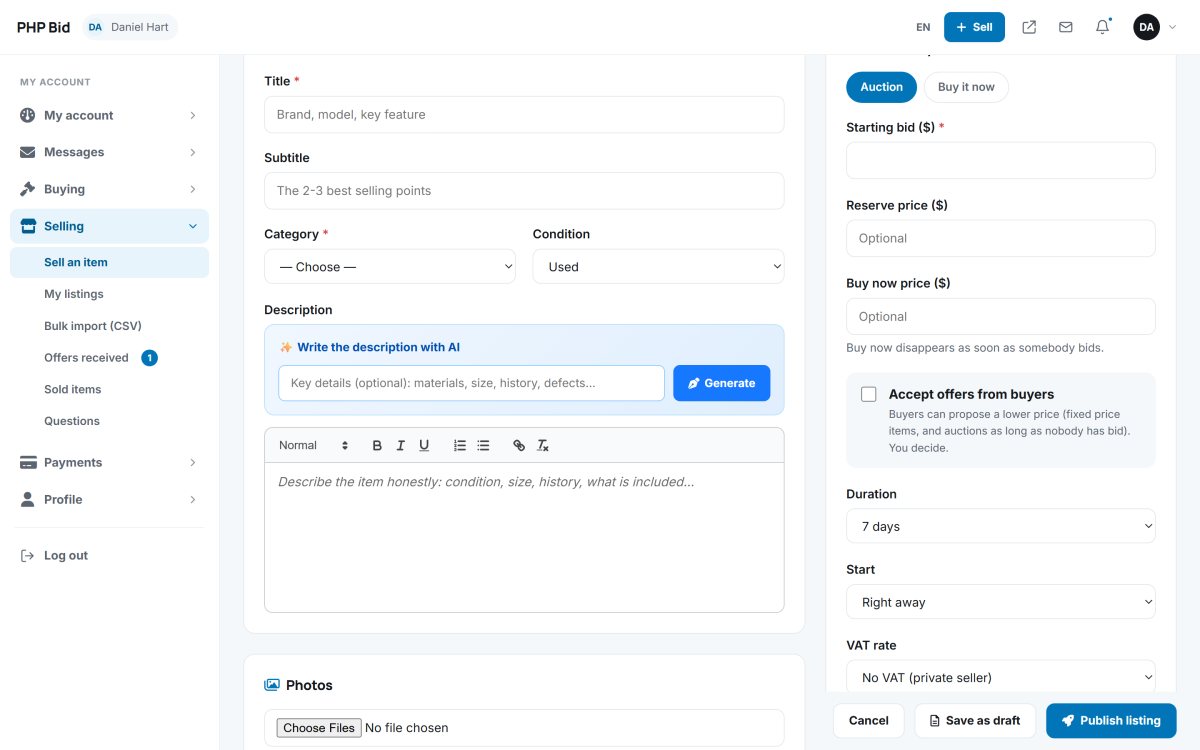
Start with the AI listing assistant
At the top of Selling › Sell an item, the seller types a few words such as "Omega Seamaster 300M blue, 2019, box and papers" and clicks the AI button. The assistant fills in a title and subtitle, the category, the condition, a value estimate, a starting price, a reserve and a Buy it now price, and gives a few selling tips. Everything can be changed before publishing.
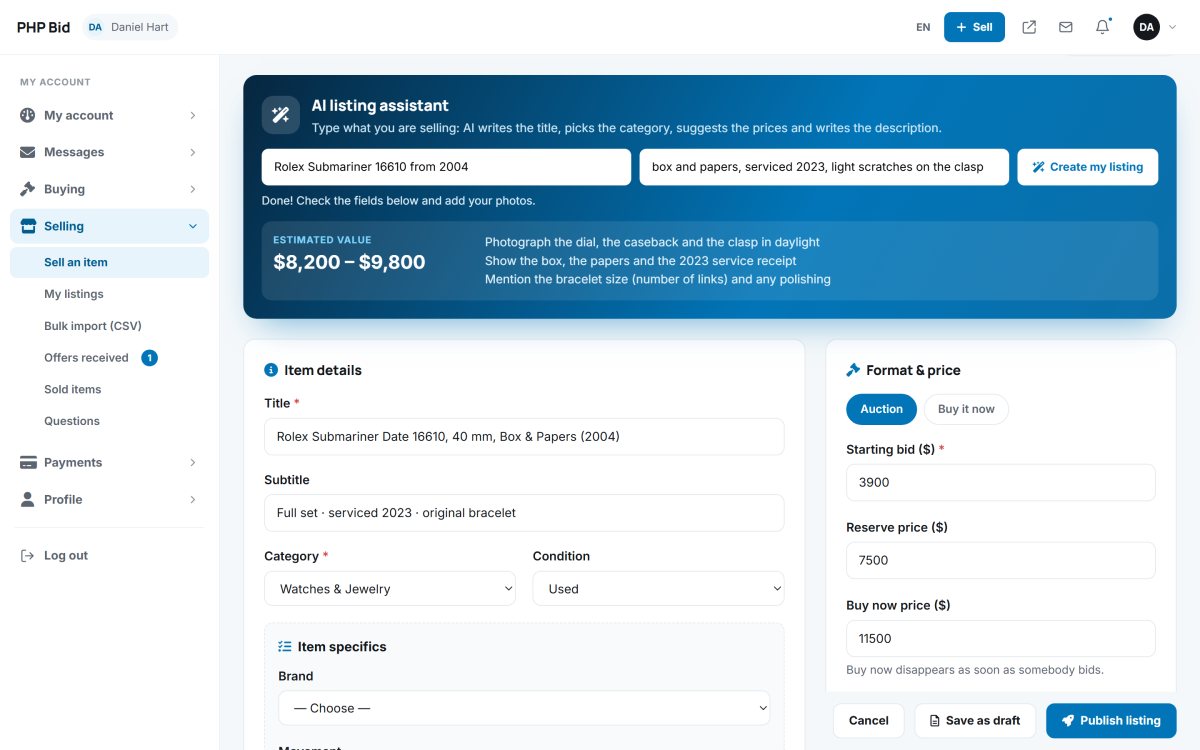
The description writer button next to the description writes a professional text with highlights and condition from the title and a few notes.
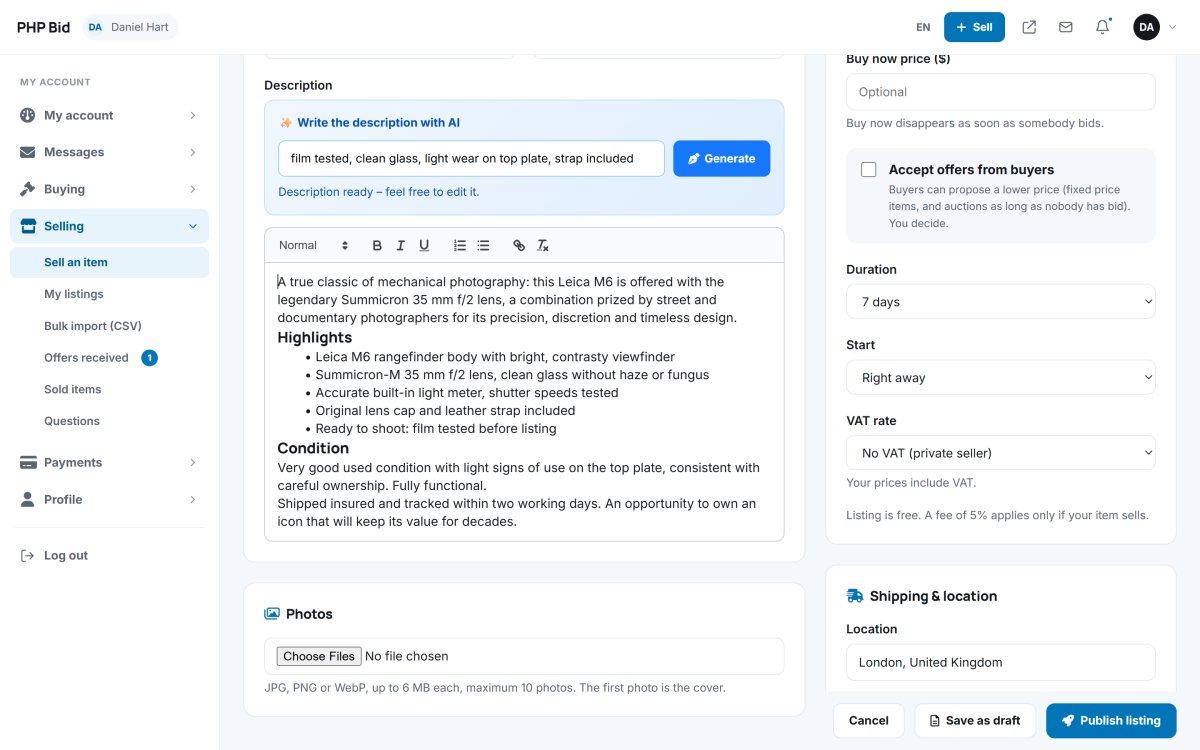
The fields of the form
| Field | Explanation |
|---|---|
| Title, subtitle | The title appears everywhere; the subtitle is a short extra line on the cards. |
| Category and condition | Choosing a category shows its own fields (brand, size, year...). See Category fields. |
| Photos | Up to the maximum set by the administrator (10 by default). The first photo is the main one. |
| Description | Full text with formatting. |
| Pricing format | Auction or Buy it now (fixed price). |
| Starting bid | The first bid must be at least this amount. |
| Reserve price | Optional secret minimum. See Reserve price. |
| Buy it now price | Optional. On an auction it disappears as soon as somebody bids. |
| Accept offers | Lets buyers propose a lower price. See Offers. |
| VAT rate | Shown when VAT is on: the seller picks one of the rates you allow. See VAT and shipping. |
| Duration and start | One of the durations you allow (for example 1, 3, 5, 7, 10 or 14 days). Start now, or schedule a start date and time. |
| Shipping | Location, one or more shipping methods with their cost (free is possible), shipping information and the returns policy. |
| Featured listing | Paid upgrade that shows the item in the featured sections. See Featured listings. |
Publish or save as a draft
Publish listing puts the item online - or sends it to the approval queue if you approve new listings. Save draft keeps it in My listings › Drafts to finish later. If you charge a listing or featured fee, an invoice is created and the listing goes online once it is paid.
After publishing
- While nobody has bid, the seller can change everything.
- After the first bid, the format, the starting price and the start date are locked to keep the auction fair; the description and photos can still be improved.
- Questions from buyers arrive in Selling › Questions. See Managing listings.