Categories and category fields
Good categories help buyers find items and help Google understand your site. Category fields add the details that matter in each niche - and turn them into search filters.
Managing categories
Auctions › Categories shows the category tree with the number of live auctions in each. For each category you set:
- Name and description (shown on the categories page and helpful for SEO).
- Parent - to make it a sub-category.
- Image - upload a photo or enter an image URL. It is shown on the home page and the categories page.
- Icon - a Font Awesome class (for example
fa-solid fa-gem), used when there is no image. - Order, active / inactive and Show on the home page.
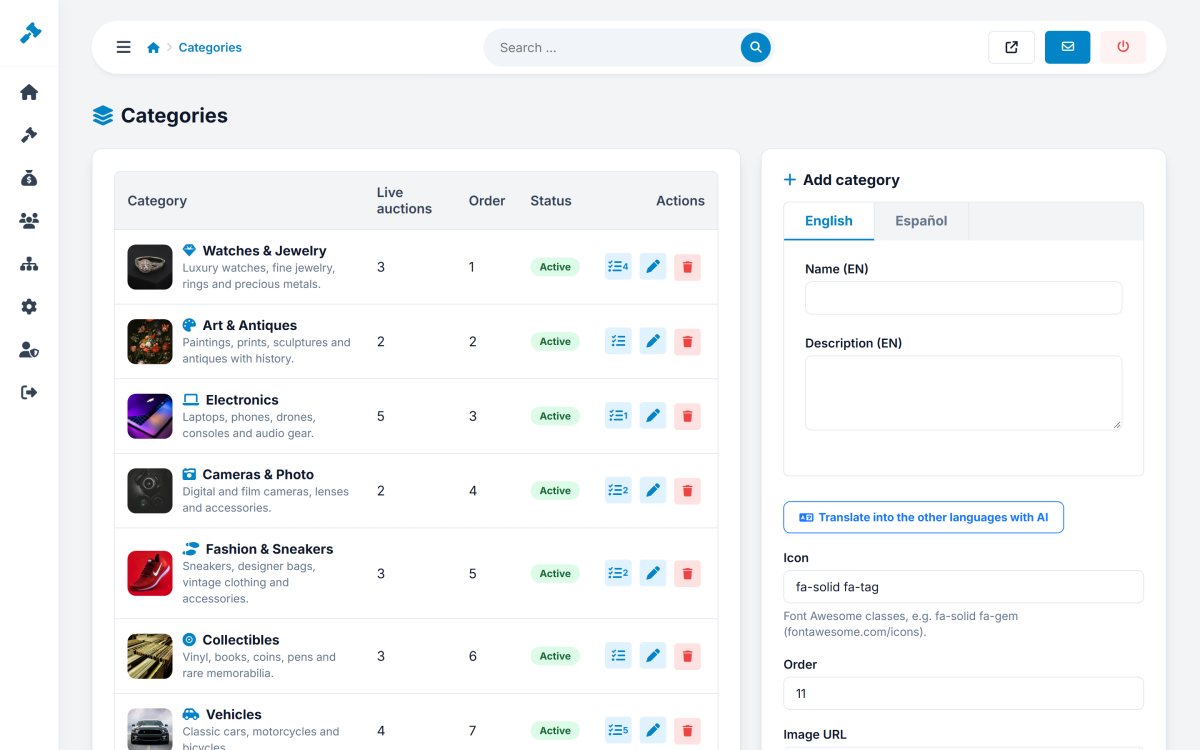
A category that still has auctions can not be deleted; move the auctions first. With the AI turned on, Translate all translates the names and descriptions into all the active languages.
Category fields
Click the fields button of a category to add the details sellers fill in for it - for example Make, Model, Year, Mileage for vehicles or Brand, Size, Colour for sneakers.
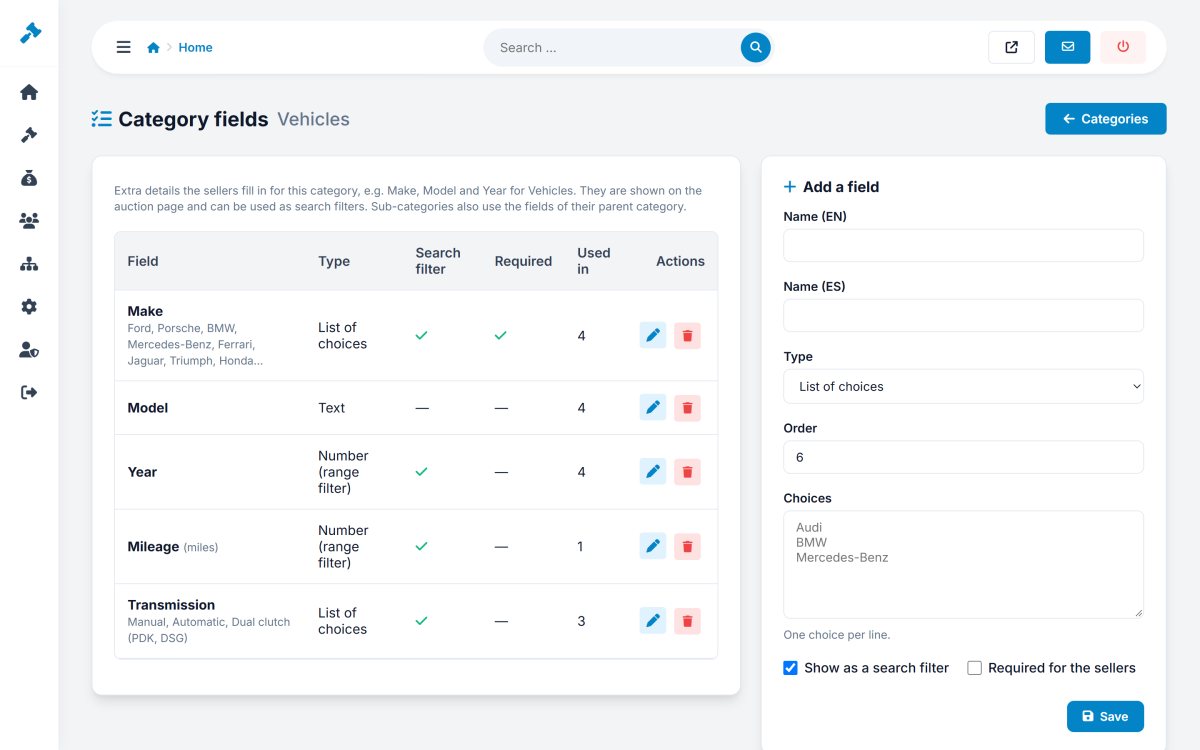
| Option | Meaning |
|---|---|
| Type | Text, Number (with a unit such as km or cm) or Select (one choice per line). |
| Required for sellers | The listing can not be published without it. |
| Show as a search filter | Adds the field to the filters of the search page (select = list, number = from / to). |
| Order | Position in the form and on the auction page. |
Sub-categories use the fields of their parent too, so you define Brand once for "Watches" and it works for all watch sub-categories. The values appear on the auction page in Item details.