Invoices and paying the fees of the website
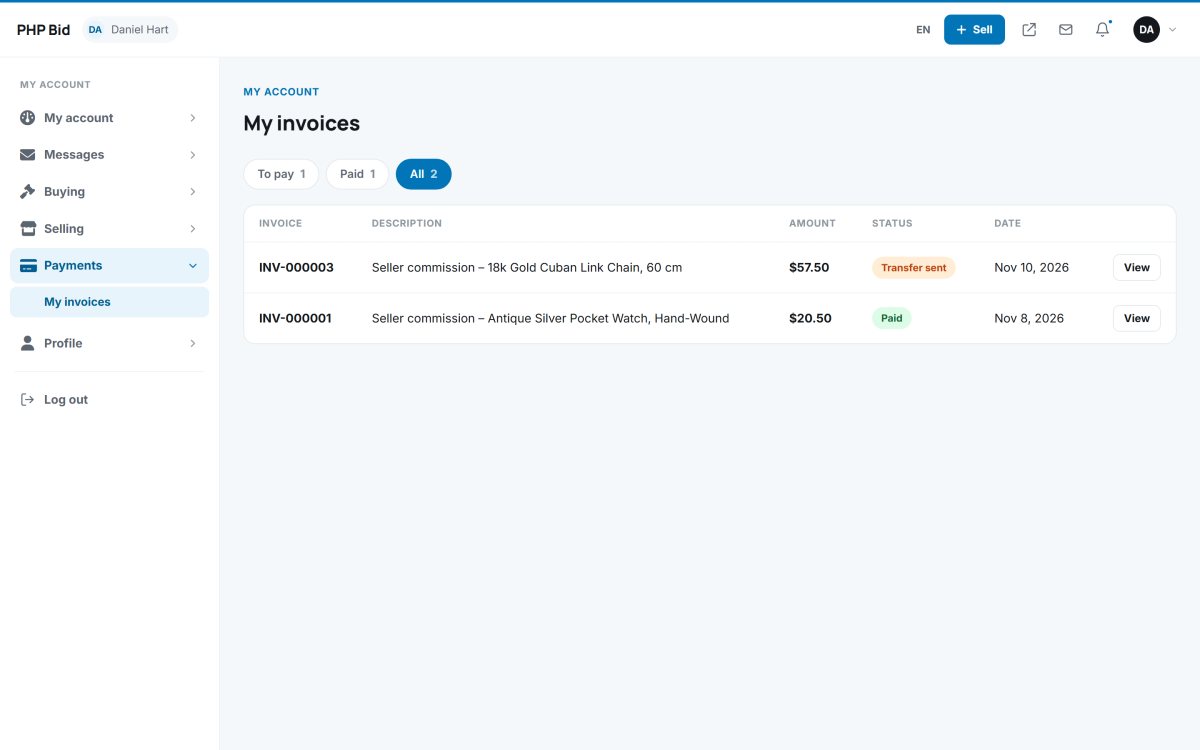
Everything the website charges appears as an invoice in Payments › My invoices. Members pay online in seconds, or by bank transfer with the reference you provide.
Which invoices are created
| Invoice | When |
|---|---|
| Listing fee | When a seller publishes a listing (if you charge one). The listing goes online after payment. |
| Featured fee | When a seller chooses the featured upgrade. |
| Seller commission | After each sale, a percentage of the hammer price. |
| Buyer's premium | After each sale, a percentage paid by the buyer to the website. |
When VAT on the fees is turned on, each invoice shows the net amount, the VAT and the total.
Paying an invoice
The member clicks Pay and chooses one of the methods you enabled:
- Card with Stripe - a secure Stripe Checkout page; the invoice is marked paid automatically.
- PayPal - paid on PayPal; the invoice is marked paid automatically.
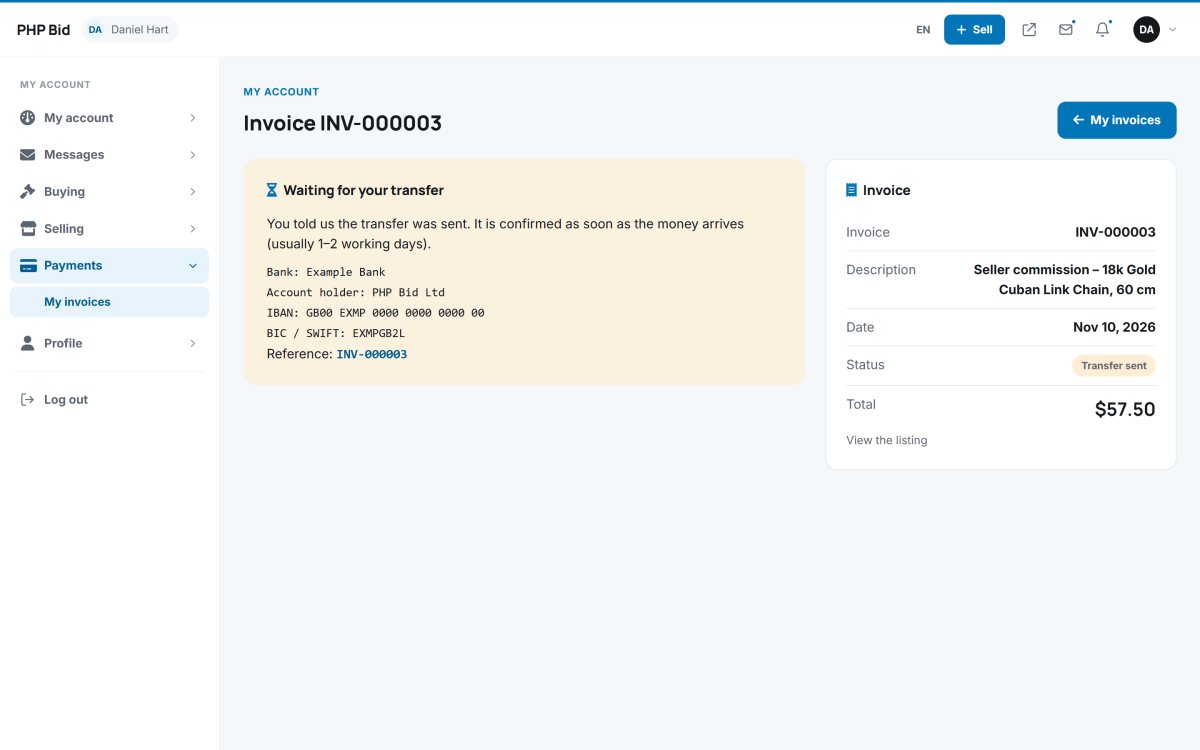
- Bank transfer - the member sees your bank details and the invoice number as reference, and clicks "I have sent the transfer". The status becomes Transfer sent until you confirm the money arrived.
Overdue fees
If you set a grace period in Settings › Payments (for example 14 days), a member with commission or premium invoices older than that can not list new items until they are paid. A message with a link to the invoices explains why.