Bulk import of listings from a CSV file
Dealers and auction houses often have dozens of items to list. With the CSV import they prepare them in Excel or Google Sheets and upload them in one go.
How it works
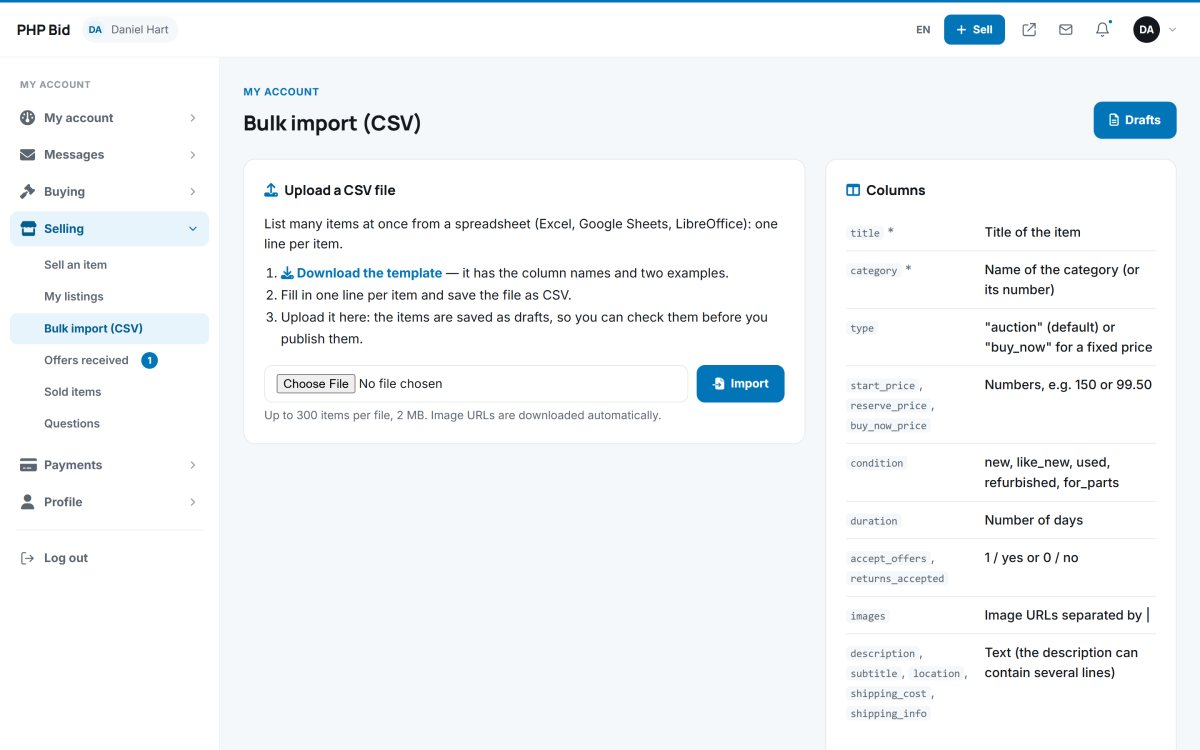
- Open Selling › Bulk import (CSV) and click Download the template.
- Fill in one row per item in Excel, LibreOffice or Google Sheets and save as CSV (UTF-8).
- Upload the file. Every valid row becomes a draft; rows with errors are listed with the reason.
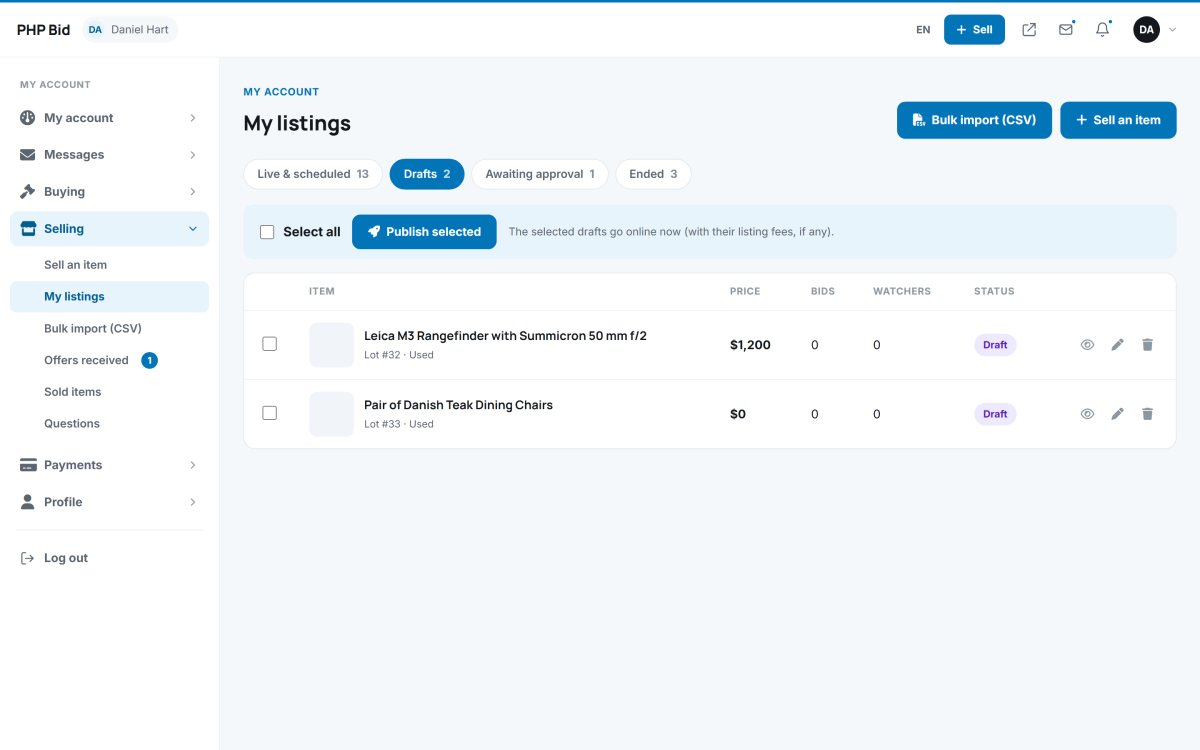
- Check the drafts in My listings › Drafts, edit any of them, tick the ones you want and click Publish selected. The duration starts at publishing.
The columns
title, subtitle, category, condition, type, start_price, reserve_price, buy_now_price, accept_offers, duration, location, shipping_cost, shipping_methods, shipping_info, tax_rate, returns_accepted, description, images
- Only
titleandcategoryare required. The category can be written by name. typeisauctionorbuy_now.imagesare image URLs separated by|. They are downloaded to your server automatically.- Extra columns named like a category field (for example Make or Year) fill in that field.
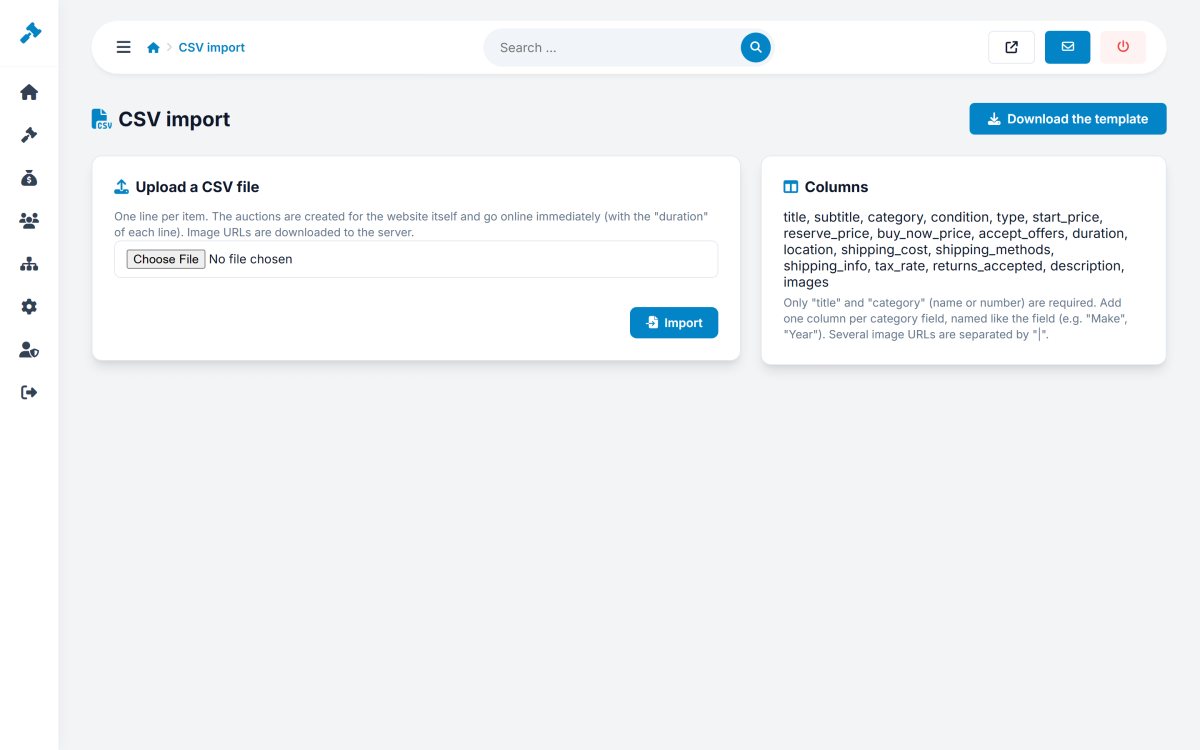
Import by the administrator
The administrator has the same tool in Auctions › CSV import, where the listings are created for the website itself and go online immediately with the duration of each row.